How to use an auction template in Turbo Lister
- Your template will be sent by email as a text (txt) file attachment
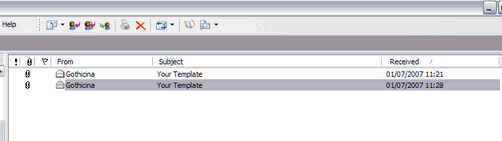
- Open the email & click on the paperclip icon.

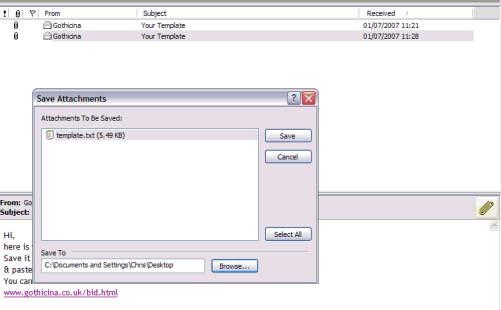
- Click on save attachment, & choose where to save it.
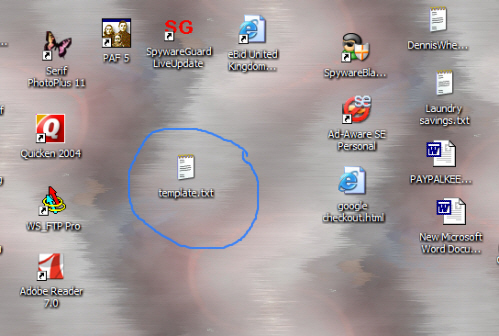
- Find your saved template file.
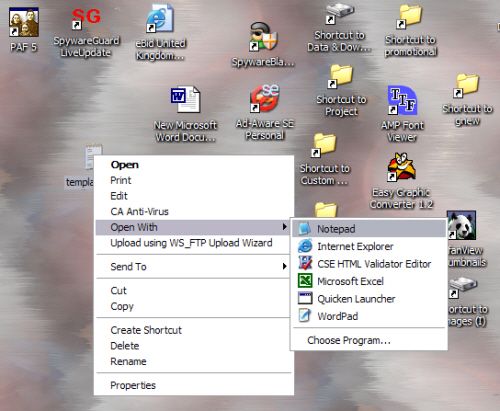
- RIGHT click on your saved file & choose Open with...Notepad.
- With the file opened in notepad choose edit - select all which will highlight all the text.
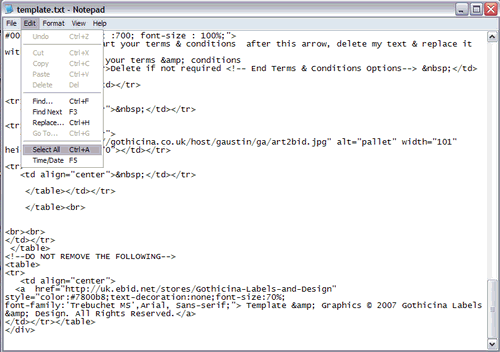
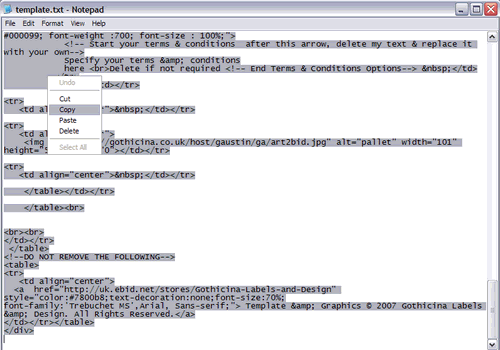
- Then RIGHT click & choose copy.
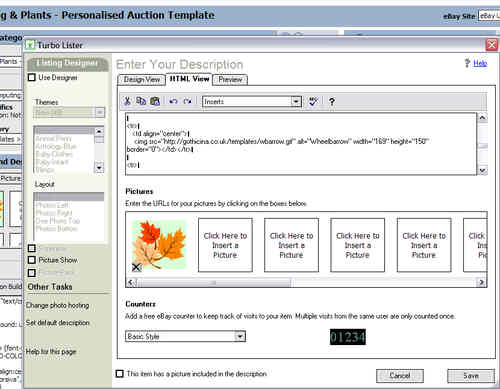
- Paste everything in the txt file into the HTML view in Turbo lister.
- Switch to the design view.
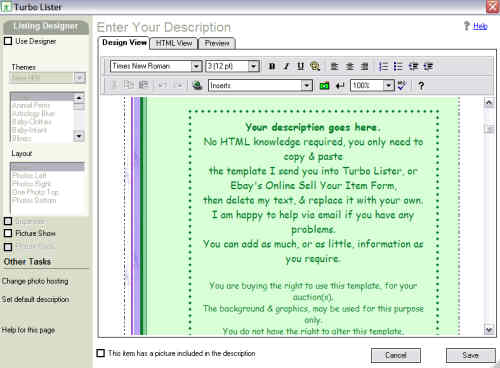
- Remove my text you will then be able to put in your description as usual.
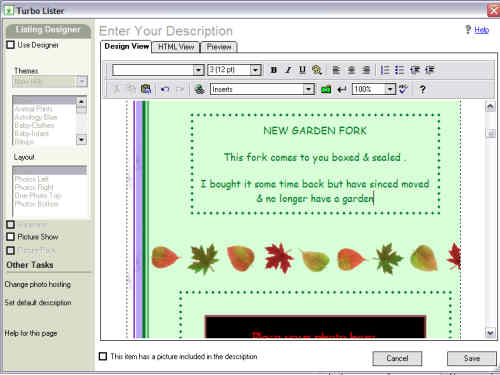
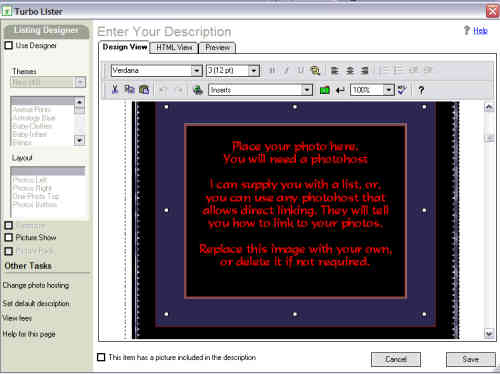
- As you scroll down you will see the placeholder image,(in the centre of a slightly larger box) select it & delete it.
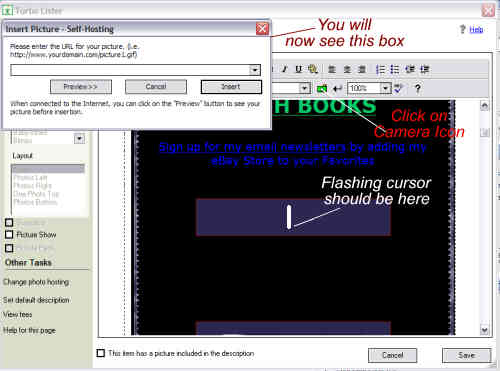
- You will now see a smaller box with a flashing cursor in the middle.Click on the camera Icon, at the top & a box will pop up at the top left of the screen.
- Go to photobucket,(same principle for other online photohosts) view your album & pick the image you want to use.
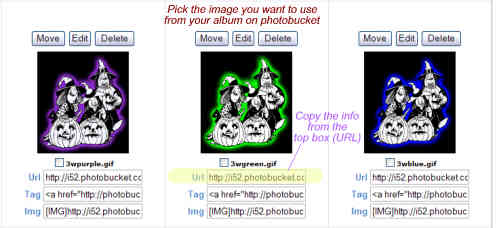
- Copy the info from the URL box & paste it into the box that popped up in turbolister.
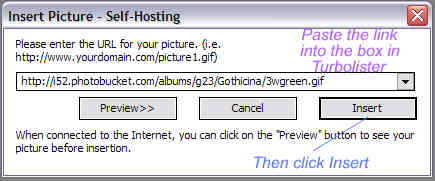
- Then click Insert. You will then see the image in the correct place in your template.
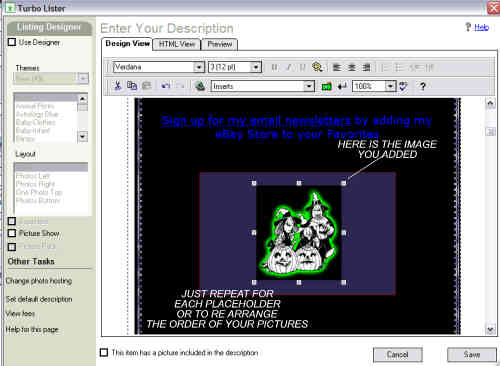
- Just repeat the above for each photo.
- Then add your payment, postage & terms & conditions to their relevant boxes.



Home |
Family eBid Shops |
eBid Stores |
Free eBid Flyers |
Free eBid Banners |
Template Tutorial eBid | Template Tutorial eBay | Join eBid | eBid Online Auctions
Template Tutorial eBid | Template Tutorial eBay | Join eBid | eBid Online Auctions